Showing posts with label How to. Show all posts
Bypass Windows Logons with the Utilman.exe Trick

Bypass Windows Logons with the Utilman.exe Trick

Utilman.exe is a built in Windows application that is designed to allow the user to configure Accessibility options such as the Magnifier, High Contrast Theme, Narrator and On Screen Keyboard before they log onto the system.
This was designed to help people who are hard of sight, hearing or mobility to log onto Windows themselves without the need of outside help. Its a great feature for disabled people but it opens up a security hole that we can take advantage of to bypass Windows logons.
Bypassing the Windows logon comes in handy if our clients have forgotten their logon password, their user profiles were corrupted or malware was interfering with the system before login.
This works because the user can trigger Utilman by pressing Windows Key + U before Windows logon. This will load up the Utilman.exe executable which resides in the Windows\System32 directory. If you swap the Utilman.exe file with something else like cmd.exe, you have access to the command prompt running SYSTEM privileges. SYSTEM is an account with the highest possible privileges on Windows which similar to the root account on Unix systems.
Here are the step by step instruction on how to do this.
WARNING: 
You can do a lot of damage to a system if you dont know what you are doing. Technibble accepts no responsibility if something goes wrong.
First of all, we will need a way to access the file system to swap out Utilman.exe with something else like cmd.exe. There are a few ways to achieve this:
  • Remove the operating system hard drive from the target system and slave it into another system with a working operating system. From there you can swap out the files on the slave drive
  • Use a Boot CD like UBCD4Win and use the file management software there
  • Use the Windows Vista or 7 DVD
In this example we will be using the Windows 7 DVD. To begin, boot from your Windows 7 DVD and when you reach the first screen asking about the language, currency and keyboard format, Click Next.
On the next page, down in the lower left hand side, click on the “Repair your computer” link.

Next, select the “Use recovery tools that can help fix problems starting Windows. Select an operating system to repair” option, choose an operating system from the list and Click Next.

You will now have an option to “Choose a recovery tool”. Select Command Prompt.
You should now have a Command Prompt Window open. Type in the following commands:
C:\
cd windows\system32
ren utilman.exe utilman.exe.bak
copy cmd.exe utilman.exe
This will navigate to the system32 directory, rename utilman.exe to utilman.exe.bak, make a copy of cmd.exe and name it utilman.exe.
Remove the DVD and reboot the system.
Once the computer boots up normally, press the key combination Windows Key + U and you should get a Command Prompt. If the Command Prompt doesnt appear, press Alt+Tab as the Command Prompt may appear behind the Logon screen. From here, you can run many (if not all) of the commands you can normally use in Command Prompt.

Resetting an Existing Users Password

WARNING: 
If you reset a users account password. This will permanently lose access to the users encrypted files. Be sure to back these up.
To reset an existing users password, we need type the text below. In this example, we will be changing JohnDoe’s password to “hunter2”.
net user JohnDoe hunter2
You should be able to log in with this new password straight away.
If you dont know what the username on the system actually is, you can see a list of the users by typing:
net user

Creating a New User Account

To create a new user account in the Command Prompt (Username: NewGuy. Password: abc123), and add them to the Administrators usergroup type:
net user NewGuy abc123 /add
net localgroup Administrators NewGuy /add

Again, you should be able to login straight away with this new account.

Reverting Changes

To restore utilman.exe, in the Command Prompt type in:
C:
cd windows\system32
del utilman.exe
ren utilman.exe.bak utilman.exe

Then reboot the system.
To remove the new user account you just created earlier, type in:
net user NewGuy /delete
That’s all there is to it.
How To Speed Up Your Android Phone By Disabling Animations

How To Speed Up Your Android Phone By Disabling Animations

disable animations speed up android
Very often Android smartphone owner search for options to speed up their devices. Sometimes, the Android animations degrade your phone’s performance. By enabling the Developer options and changing a couple of simple settings, you can disable animations and speed up your Android phone in few steps. 
ndroid operating system allows the OEMs to change the look and feel of the software by incorporating different themes, icons, and animations. Apart from improving the aesthetics, these elements also improve the overall user experience.

With each new version of Android, Google rolls out new types of animations. However, if you don’t own a powerful hardware, these animations can become a curse. They can irritate you due to their slow speed at which they play when you click on some icon. So, for some users, these animations act as performance killers rather than improving the overall experience.
I’m pretty sure that such frustrating situations have been faced by many of you. However, Android doesn’t provide you a direct option to turn these animations off. To speed up your Android phone by disabling animations, you need to enable the Developer options and find relevant settings. By making these changes, you should notice an immediate performance improvement on your Android device.

How to disable animations on your Android smartphone?

I’ll be explaining how to disable animations in simple steps. Please read ahead:

Enabling Developer options:

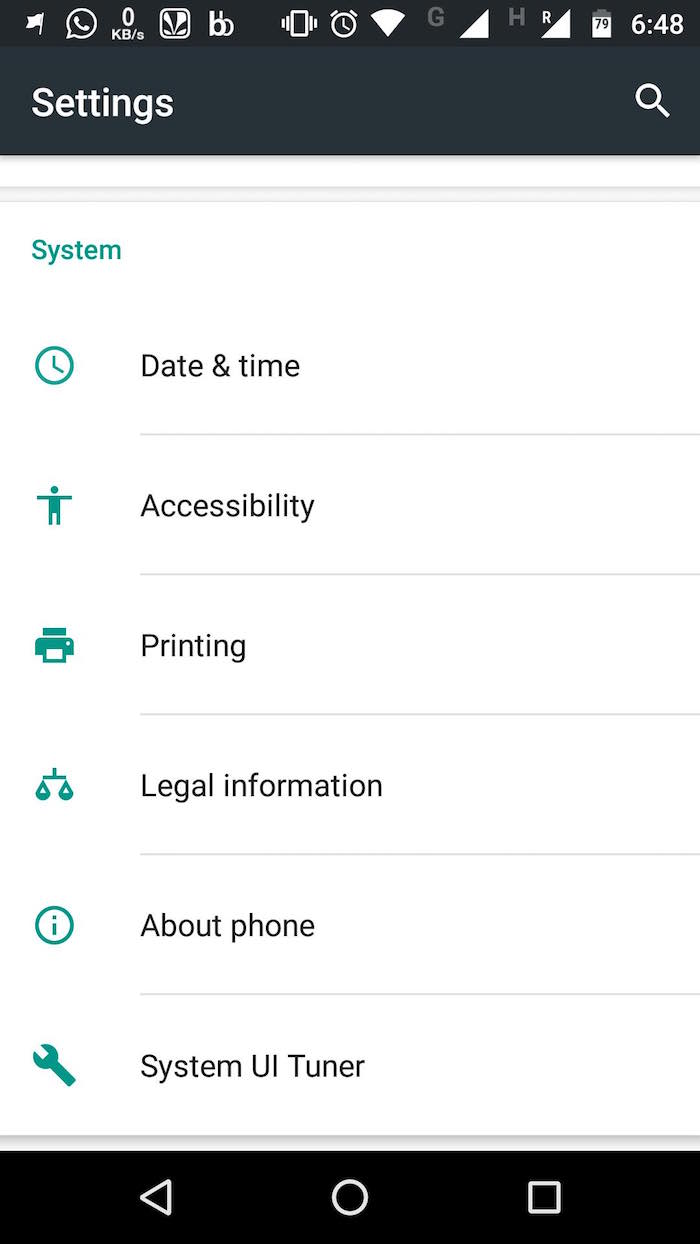
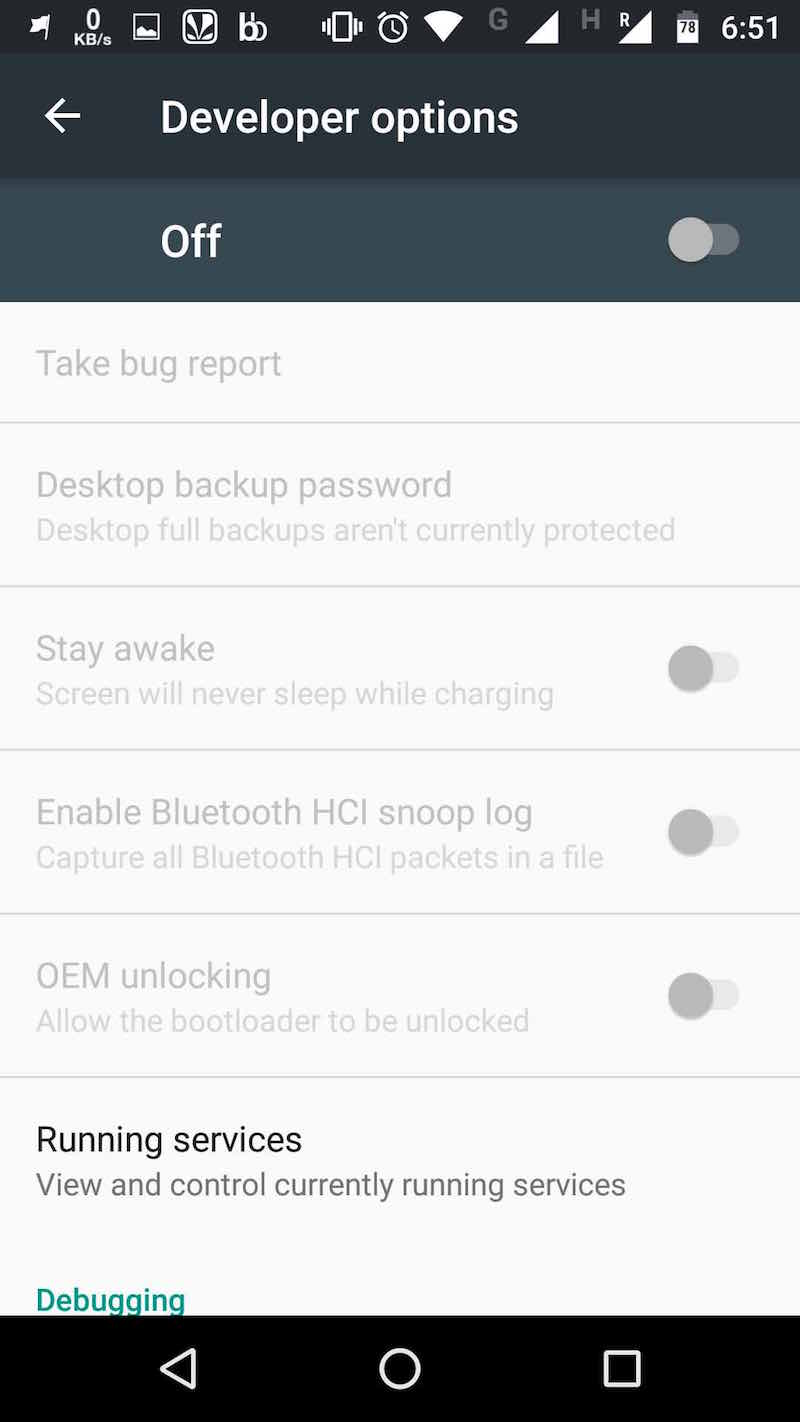
  • To make these changes, first you’ll need to enable the developer mode on your Android smartphone. It’s hidden by default and you need to make some changes to enable it. To do this, open the Settings screen and scroll down to the bottom. There, tap on the About phone option.speed up android by disabling animations
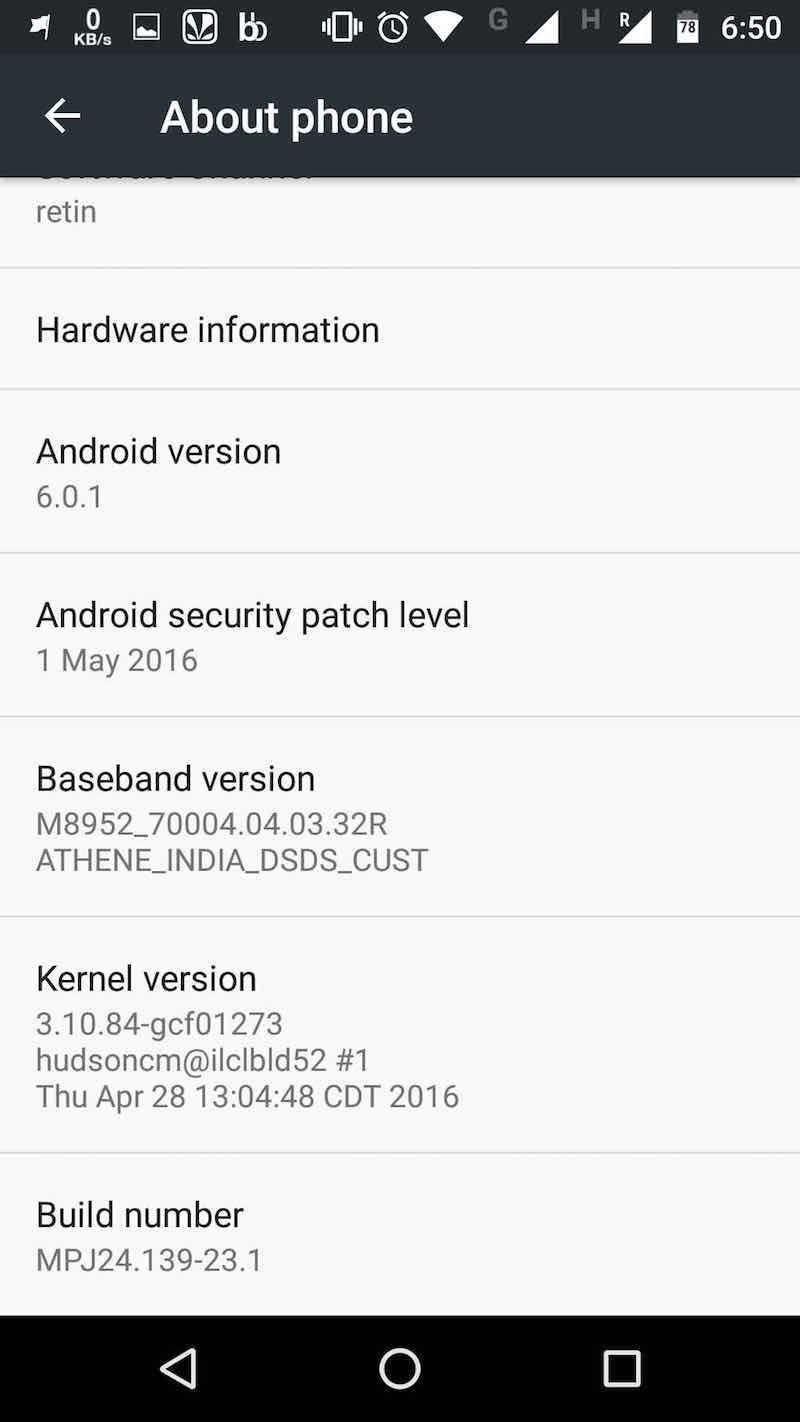
  • In this window, again scroll down to the bottom and look for Build number. Tap this field repeatedly.speed up android by disabling animations
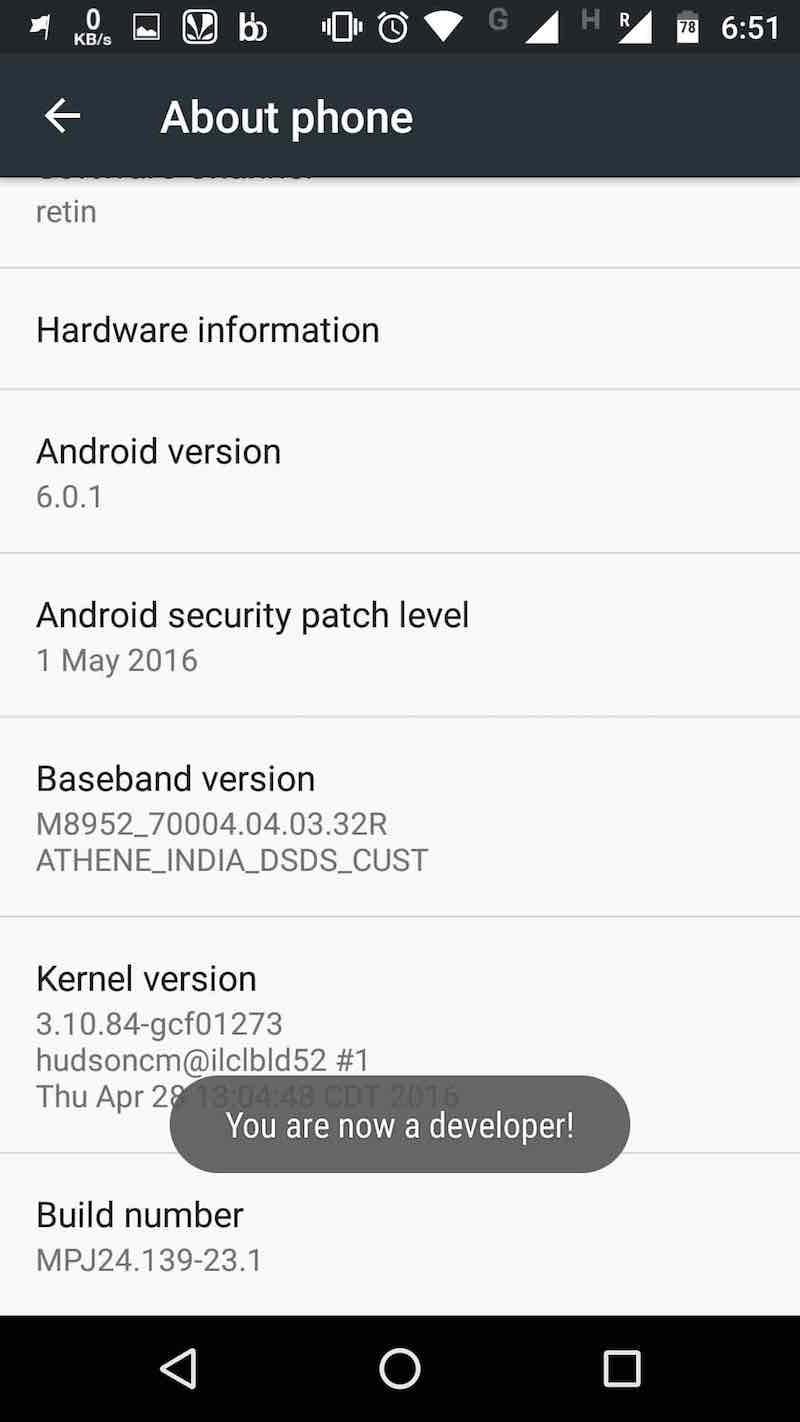
  • After tapping few times, you’ll be seeing a message — “You are now a developer“.speed up android by disabling animations
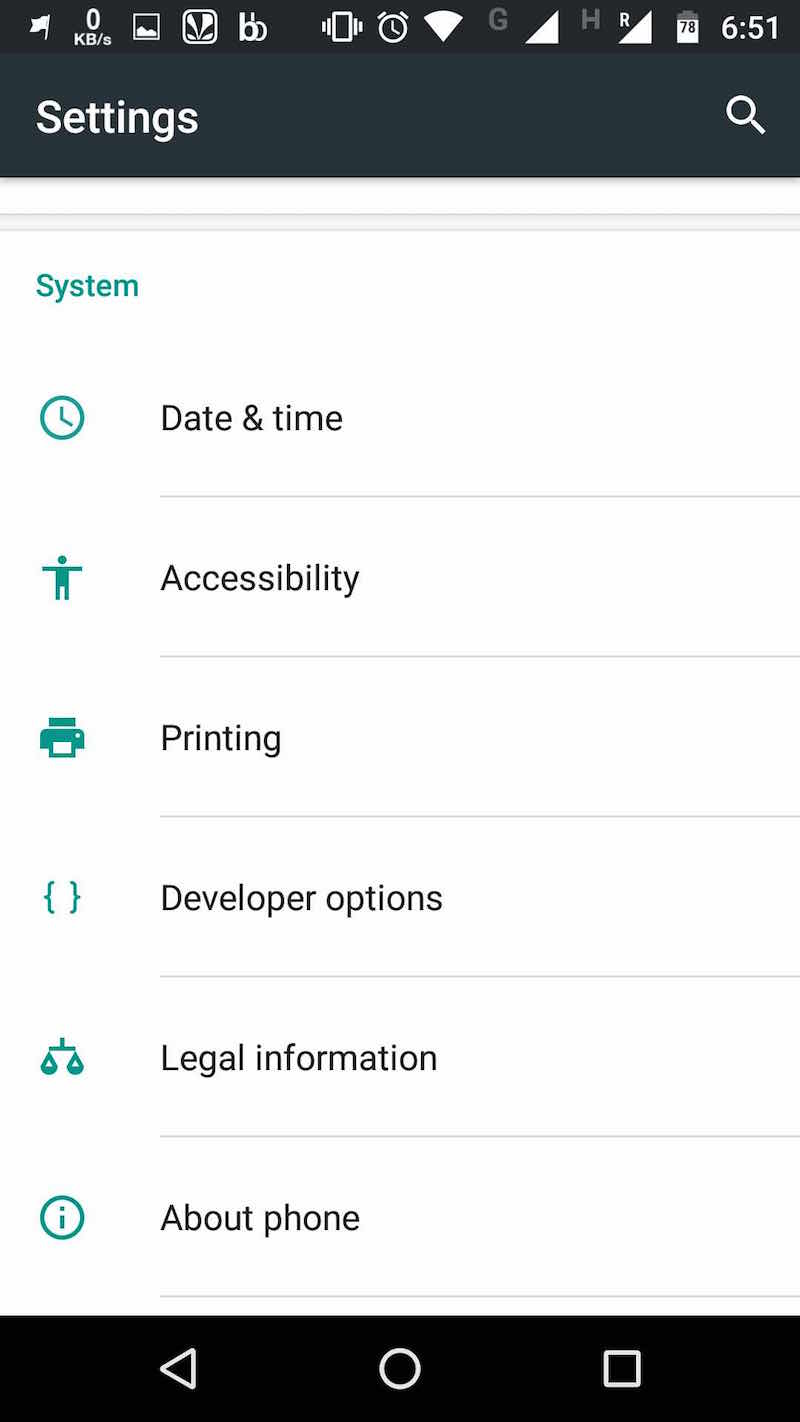
  • Now, you need to go back to the Settings screen and scroll to the bottom. There, you’ll be able to spot the new Developer options field. Now tap on it and proceed with the process to disable the animations in your Android smartphone.speed up android by disabling animations

Disabling the animations:

  • After opening the Developer options screen, you need to turn On the option by sliding the switch at the top. This will enable the hidden options and allow you to make changes. speed up android by disabling animations
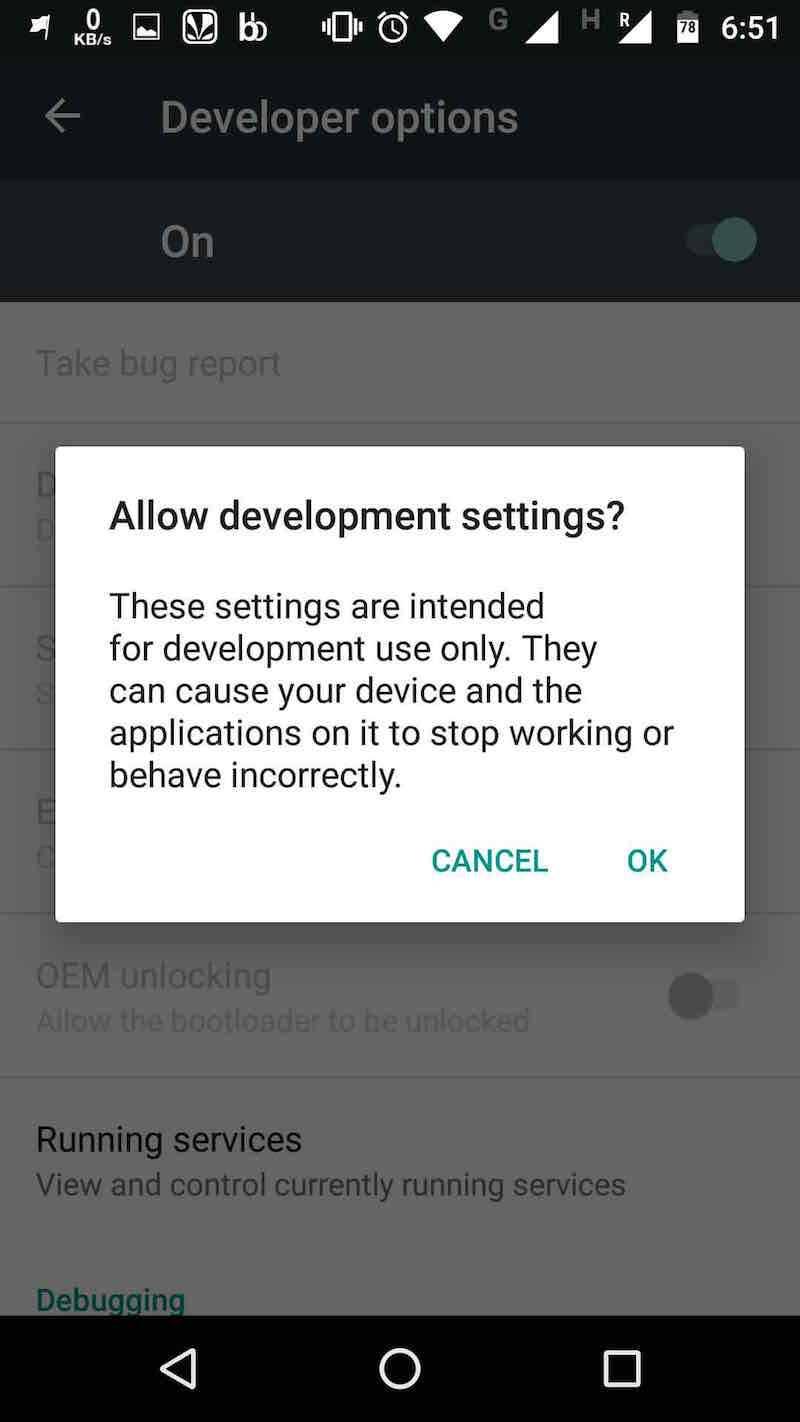
  • You’ll see a small dialog asking you to allow development settings. Tap onOK and proceed to disable animations on your Android smartphone.
    speed up android by disabling animations
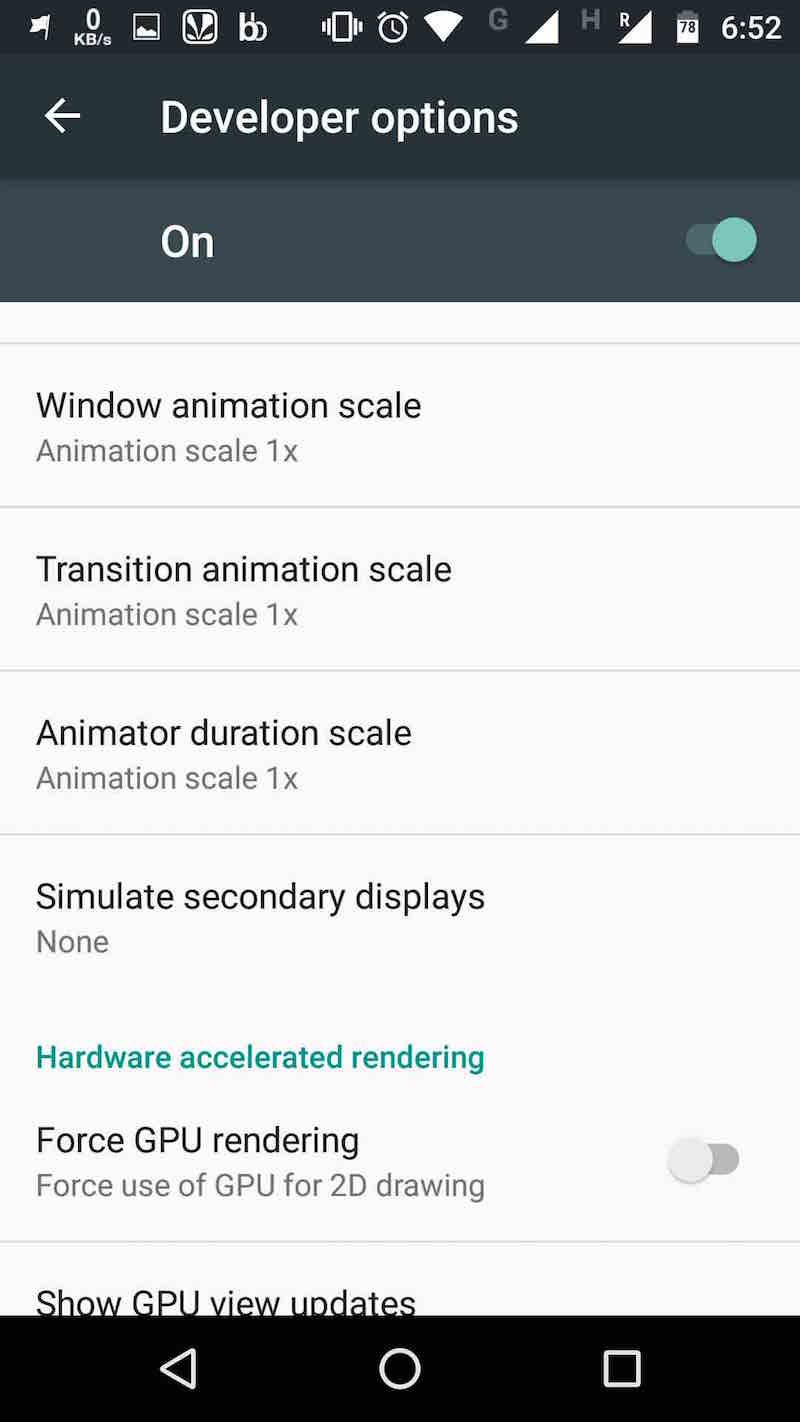
  • You need to scroll and down in this screen and look for different options with animation keywords. You’ll be spotting different options like Window animation scale, Transition animation scale, and Animator duration scale.speed up android by disabling animations
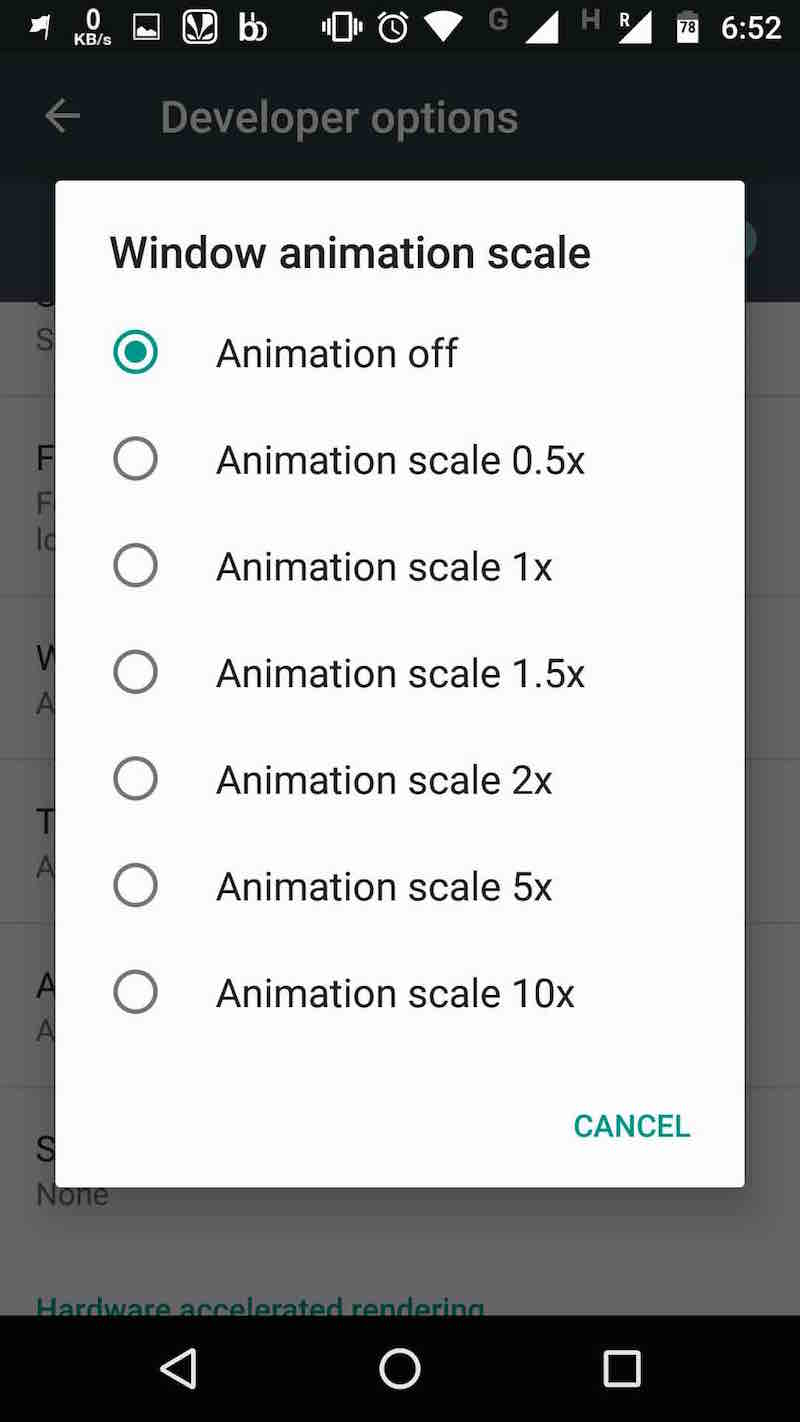
  • Now tap on each of these options and select the Animation off option. Please note that the default value is set as 1x. So, if you want to speed up your phone without entirely disabling the animations, you can select the Animation scale 0.5x option. This will boost the speed of animations and your phone’s speed.speed up android by disabling animations
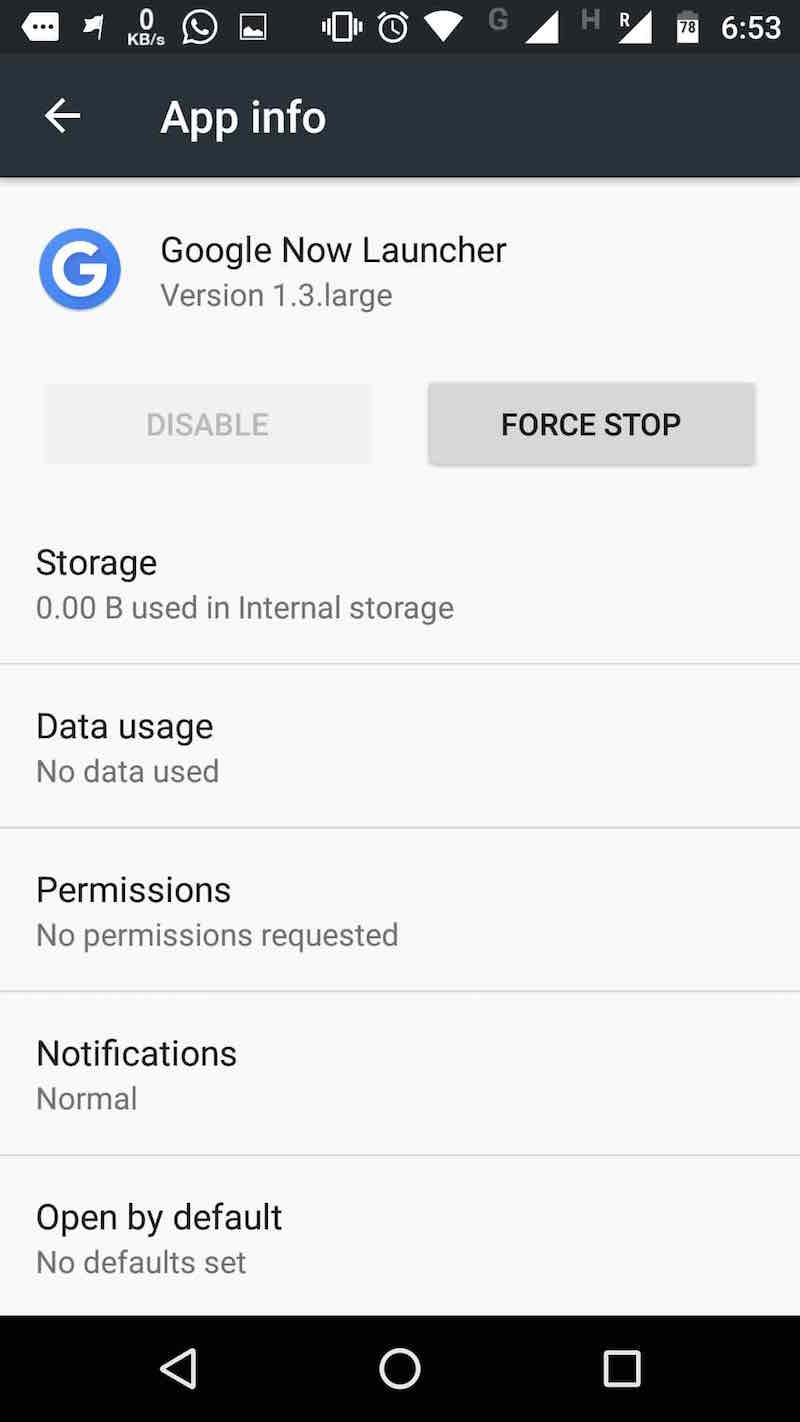
  • These changes won’t take effect immediately. For that, you’ll need to restart your Android launcher after making the animations changes. To do so, open the Android launcher app from the Apps option in Settings, and select the Force Stop option. Now tap your Android smartphone’s home button and it’ll relaunch your Android launcher.speed up android by disabling animations
After applying these simple steps, the animation effects in your smartphone will be disabled and you’ll notice a speed improvement. So, from now on, if you’ll tap on some app or make a transition to another screen, the change will take place as soon as possible. Now, you phone won’t play animations and use processing juice to render them.
Important: Please note that the extent of speed improvement also depends on your Android phone and its hardware capabilities. If completely turning off animations causes some problems in certain apps, decrease the delay to 0.5x.
Did you find this article helpful? Don’t forget to drop your feedback in the comments section below.

CUSTOMIZE FOLDERS WITH DIFFERENT COLORS IN WINDOWS

technology and tricks


There are many softwares available today over the internet which can Customize your Computer in an efficient manner that it looks so attractive as well as it becomes very easy to use. We always want our computer to be clean and well organized so that whenever we need to access something or need to search a particular file/folder in our computer we could find it easily.
As similar to that, here I am going to share a software through which you can easily assign your favorite colors to your desired folders in order to differentiate them easily and to ease of access.

HOW DO I CUSTOMIZE FOLDERS WITH DIFFERENT COLORS ?


Just follow the two simple steps given below to customize your folder :

STEP 1 :

First of all Download and install the software FolderColorizer. It is tested and 100% virus free. You can download it from here : DOWNLOAD FOLDERCOLORIZER

STEP 2 :

Now after installing the software, simply right click on any folder which you wish to customize. Here when you right click on folder, you will see a new option in the context menu i.e. Colorize !. Now simply go to that option and one submenu will appear. Now choose any color you want to assign to this folder.
Although it is a free software for everyone to use it but while you will use this software for the very first time , it will just ask your email id for activation of this software. But no need to worry because you wont need to confirm the activation by logging in to your e mail account. Even if you don’t wish to share your e mail id with developers of this software you can do it because product will be activated automatically once you enter any email id. So you can also enter any fake id if you want.
For your convenience I am providing you a screenshot of above mentioned procedure for changing folder color :
Customize folders with different Colors
In this way you will be able to easily organize folders in any of your drive weather C: , D: or any other drive. You can also assign different colors to several folders in the same drive to give it more attractive and cool looks.


FIX THERE IS A PROBLEM PARSING THE PACKAGE ERROR


Android is the most popular Mobile Operating System today. The reason is because of its Versatility, User Friendly and Easy to Use for all Users. There is not Doubt that Most People Prefer Android ahead of other Mobile Operating System.

But this Doesn’t Mean you will never Face any Problem or Error while using Android Smartphones. We all like to Install Different apps or Games in our android smartphones but Sometimes while installing you my be Displayed an Error which says “There is a Problem Parsing the Package”
So if you face this kind of error while Installing any App or Game in your Android smartphone and want to get rid of it, then Do not worry because here in this article i am going to discuss About this error, The Reason and How to Fix it Etc.

REASONS OF THERE IS A PROBLEM PARSING THE PACKAGE ERROR

You may get this Error Due to following Reasons:There is a Problem Parsing the Package
  1. The Downloaded .apk file is Currupted or not fully downloaded
  2. You might have turned off “Allow installation of apps from Unknown Sources”
  3. If the App is not Compatible with the Hardware or the Version of OS you are using.

HOW TO FIX THERE IS A PROBLEM PARSING THE PACKAGE ERROR

So Now that we know why There is a Problem Parsing the Package error occurs, we can now easily find a fix to this Problem.

1. ALLOWING INSTALLATION FROM UNKNOWN SOURCES:

We tend to download .APK files from Google Play store but sometimes We even download it from unknown sources and hence android don’t Allow us to install the app.
One of the most Common fix to this problem is to Turn on “Allow installation of apps from unknown Sources”. To do so Follow the Below Simple steps
  • Go to your Device Setting Menu
  • Scroll down and Click on Applications
  • Now Check the Box of Unknown Sources to allow installation of non Market Applications
After Completing the Above Simple steps you may now try and install the app which was showing error.

One of the most Common fix to this problem is to Turn on “Allow installation of apps from unknown Sources”. To do so Follow the Below Simple steps
  • Go to your Device Setting Menu
  • Scroll down and Click on Applications
  • Now Check the Box of Unknown Sources to allow installation of non Market Applications
After Completing the Above Simple steps you may now try and install the app which was showing error.

2.INSPECT YOUR APK FILE:

If the Above Fix do not work to fix the error then you may now try to inspect the apk file that you downloaded. Check it the file is Fully downloaded and is not Corrupted.
One of the most Common fix to this problem is to Turn on “Allow installation of apps from unknown Sources”. To do so Follow the Below Simple steps
  • Go to your Device Setting Menu
  • Scroll down and Click on Applications
  • Now Check the Box of Unknown Sources to allow installation of non Market Applications
After Completing the Above Simple steps you may now try and install the app which was showing error.

2.INSPECT YOUR APK FILE:

If the Above Fix do not work to fix the error then you may now try to inspect the apk file that you downloaded. Check it the file is Fully downloaded and is not Corrupted.
If you have downloaded the apk file from any other place rather then Google play store then Make sure you download it from Google play store this time. Try to install it Now.

3.APP IS NOT COMPATIBLE WITH YOUR DEVICE OR OS:

If you are still not able to Get rid of There is a Problem Parsing the Package Error then it clearly indicates that the file that you have downloaded is not Compatible with your Device hardware or Operating System.Try to Install it on another Android Device which has better hardware and Higher Version of Android Installed in it.
So these were Some of the Fixes that will help you to Tackle with the There is a Problem Parsing the Package Error Message. if these Methods works for you or you have any other solution to this Problem then Feel free to share it with Us in Comments below.


Download Lucky Patcher 6.2.6

Download Lucky Patcher 6.2.6

Lucky Patcher iconImage result for lucky patcher


Lucky Patcher is a great Android tool to remove ads, modify apps permissions, backup and restore apps, bypass premium applications license verification, and more. 

To use this application, you need a rooted device. 

Know: 
Although stable, functioning of Lucky Patcher can't be guaranteed at 100%. 
So you are solely responsible of use of this application. 
Under no circumstances Netbew be responsible for any problems caused to your device (rebooting loop, unstable system, etc...).


Lucky break LuckyPatcher from cracking the ChelpuS work, need root permissions can solve some software or games, also can go to advertising, such as TankRiders, Reckless Racing HD? Ground Effect HD, Spirit, Aftermatch and so on, but there's no guarantee that will break, so called lucky break, apply after long press Popup the menu.

Note: when faced with a lucky break before the wreck some update version out of space to remind, to the corresponding app uninstall, and then run the luckyautomatically clear the data after installation

Download Lucky Patcher 6.2.6


Old Versions


CEH v9-Certified Hackers Course PDF


Image result for CEH v9-Certified Hackers Course

This is the worlds most advanced ethical hacking course with 18 of the most current security domains any ethical hacker will ever want to know when they are planning to beef up the information security posture of their organization. In 18 comprehensive modules, the course covers 270 attack technologies, commonly used by hackers.

Note:- These hacking ebooks are only for the ethical knowledge purpose and must not be used for illegal purposes.

Download CEH v9 modules

Disclaimer:- These ebooks are only for educational purpose. The author or the blog owner is not responsible for any kind of misuse of this information provided.


100+ free hacking tools to become hacker